
Getting your project printed can be an overwhelming process. Here at Trebnick, we want to give you the best possible print we can! To do this, we will need the best possible source material to work with. But what does that mean for you?
We ask for artwork that is supplied to us to either be a high-resolution raster image or an editable vector image. If you don’t have a background in design, we understand that those terms can be a bit confusing! So, let’s look at what these types of image files are, and what aspects are important to printing!
Raster Images
A raster image is a digital version of a traditionally printed image. Raster images are made of a grid of small, colored dots called pixels. When viewed from a distance, pixels give the appearance of a seamless image. Raster images can depict anything and are perfect for displaying complicated images, with one catch, you must have enough pixels available to render a high-quality print.
Pixels are measured by the number of Pixels Per Inch (ppi), more commonly known as Dots Per Inch (dpi) in the print industry. The higher your dpi, the sharper your image will appear. Conversely, the lower your dpi is, the more likely you are to encounter pixelation. Pixelation occurs when you can see the edge of each pixel resulting in a ‘blurry’ looking image.
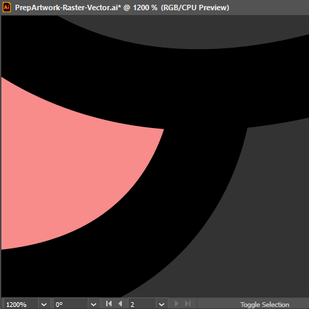
Note the example below… As we zoom into the image from 100%, to 300%, to 1200% we can start to see the individual pixels that make up the image. The edges of the shapes also start to get blurry the closer we zoom in.
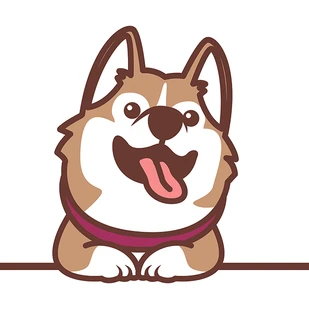
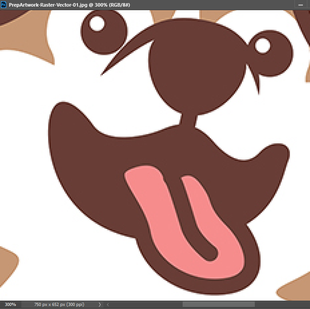
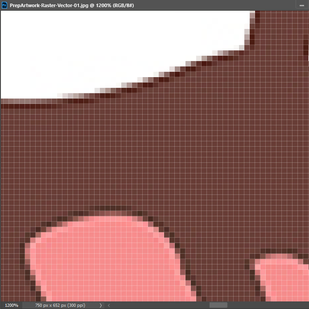
Image Resolution
When discussing printing, the term resolution (or image resolution) refers to the number of dots per square inch of printed paper if the raster image is printed without scaling. The standard resolution for a printed image is 300dpi, whereas the standard resolution for an image being displayed on a screen is 72dpi. This means that an image that may look perfectly clear on your computer, will still print pixelated due to a low image resolution.
Be sure to use large, high-resolution raster images for your print, and check that the images are at least 300dpi! It is easier to bring a raster image down in dpi, rather than making a small image a larger size or higher resolution, as doing so will distort the image.
Vector Images
Distance matters with RFID! Do you intend to use RFID for more targeted-based identification of individual items? Or, for more generalized item counting, where you will need to capture a lot of data at once? The effectiveness of RFID is influenced by the device’s beamwidth and gain.
RFID antennas transmit radio waves outward and spread in a cone-like shape. Beamwidth refers to the widest spread of this cone. Simply put, the larger the beamwidth, the more coverage an RFID scanner will have. Gain refers to how effectively an antenna can receive or transmit a signal in a single direction. Generally speaking, the wider your signal spreads, the shorter the distance it can travel. So, the gain will increase with a smaller beamwidth, as a more focused beamwidth will increase the strength of the transfer in a given direction.

File Formats
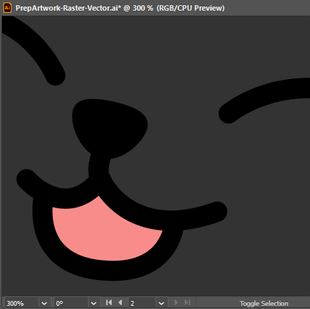
Not sure what type of image your file is? One way you can check is by zooming in on the image. If you notice pixels, then you got a raster file. If everything stays crisp, then that would be a vector file. You can also look at the file type! Some file formats can only support raster images, but not vector. It is important to note that some file formats allow raster and vector images to co-exist in the same file. Always check your source files before embedding them into a file that can handle both raster and vector. Here is a quick guide to various file formats and the images that pertain to them…| FILE FORMAT | RASTER? | VECTOR? | NOTES: |
|---|---|---|---|
|
JPEG (.jpg or .jpeg) |

|

|
Most common raster file type. Does not allow for a transparent background. |
| PNG (.png) |
|
|
Second most common raster file type. Can have a transparent background. |
|
TIFF (.tiff or .tif) |
|
|
Does not allow a transparent background. |
| GIF (.gif) |
|
|
Restricted colors, allows multiple frames (animation), can have transparency. |
| SVG (.svg) |
|
|
Most commonly used for vectors, but can embed raster images. |
| EPS (.eps) |
|
|
Most commonly used for vectors, but can embed raster images. |
| PSD (.psd) |
|
|
Adobe Photoshop native file type. Most commonly used for raster files, but can embed vector images. |
| AI (.ai) |
|
|
Adobe Illustrator native file type. Most commonly used for vector files, but can embed raster images. |
| PDF (.pdf) |
|
|
Can embed vector and raster images alike, and can also embed font files. A favorite in the print industry. |
As you can see, both raster and vector images each have their own perks. For the best possible results, we always prefer to be supplied with vector images as they offer the best print quality and may help cut down on plate costs.
If you don’t have vectorized artwork, that is just fine. Our Graphics Team can try and clean your raster image up and transform it into a vector image for you if possible. Try to send us a high-resolution raster image if possible!
No matter how you send artwork to us, our on-site Graphics Team will start working on your proof for you once we receive your project! Our goal is to only supply you with the best quality print!